
Trainer - Session Stats
Session Stats is your real-time performance dashboard in the Trainer. It gives you a live overview of your decision-making quality throughout a training session, helping you spot patterns and understand where you're making mistakes. Instead of waiting until the end to review your results, you can see exactly how you're performing as you play.
Think of it as your personal coach, giving you instant feedback on your progress and highlighting areas for improvement. It's designed to keep you focused on what matters most: closing the gap between your play and GTO.
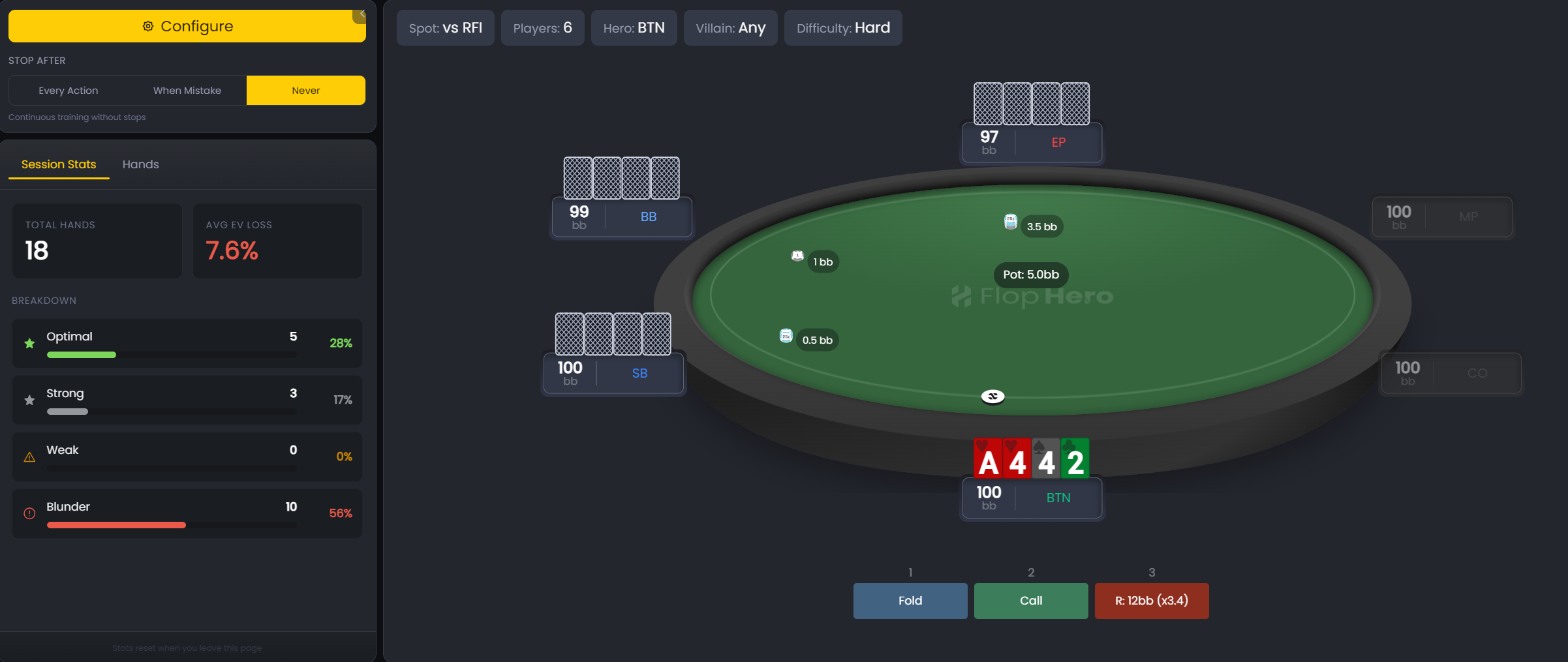
What You're Looking At
The Session Stats panel sits on the left side of the Trainer and is divided into two tabs: Session Stats and Hands.
Session Stats Tab
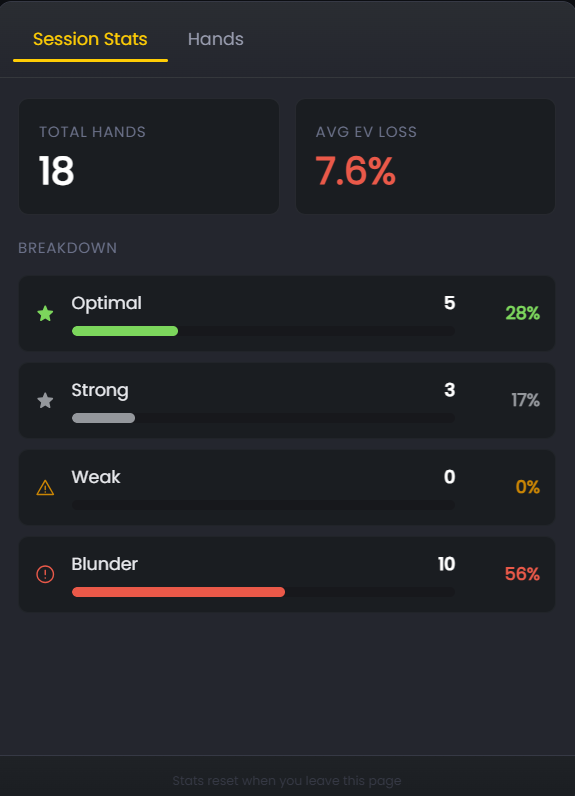
This tab shows your overall performance with two key metrics at the top:
- TOTAL HANDS: The total number of hands you've played in the current session.
- AVG EV LOSS: Your average EV loss across all hands played. This is the single most important metric for tracking your performance.
Below these metrics, you'll find the BREAKDOWN section. This categorizes every decision you make into one of four quality levels:
- Optimal: A perfect GTO play with 0% EV loss.
- Strong: A very good play with a tiny EV loss.
- Weak: A suboptimal play with a moderate EV loss.
- Blunder: A major mistake with a significant EV loss.
Each category shows a count of how many hands fall into it, along with a percentage of the total. A colored progress bar gives you a quick visual representation: green for Optimal, and red for Blunder.
Hands Tab
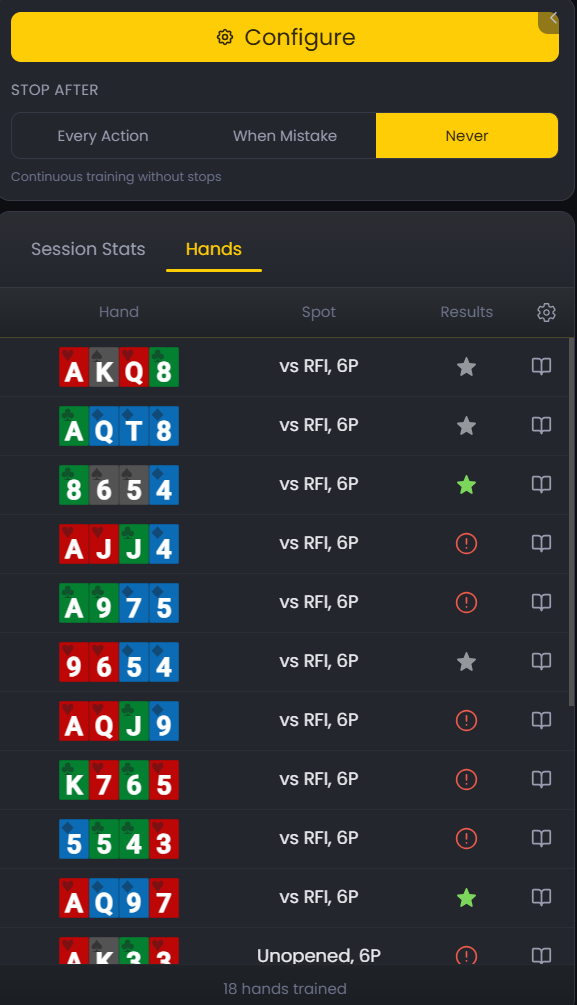
The Hands tab shows a list of every hand you've played in the current session. Each row displays the hand you were dealt, the spot type, and the result of your decision.
You can customize what information is shown using the Manage Columns button. The available columns are:
- Hand: The 4 cards you were dealt.
- Spot: The scenario type (e.g., "Unopened, 6P").
- EV Loss%: The percentage of EV you lost compared to GTO.
- EV Loss: The absolute EV loss in big blinds.
- Results: A visual icon showing the quality of your decision.
- Action: The action you took (Fold, Call, Raise).
Each hand row is clickable. Click on any hand to re-open it with feedback, or use the Open simulation button to launch the full Strategies section for that hand.
How to Use Session Stats
Session Stats are designed to be intuitive. As you play hands in the Trainer, the stats update in real-time. Here's how to get the most out of it:
Start by configuring your desired spot and clicking Start Training. As you make decisions, you'll see the TOTAL HANDS and AVG EV LOSS update instantly.
Keep an eye on the BREAKDOWN section. Are you making mostly Optimal and Strong plays? Or are Weak plays and Blunders piling up? This is your first clue to how well you understand the current spot.
If you see a high number of Blunders, it's a clear sign that you need to study this area more deeply. Switch to the Hands tab to review the specific hands where you made mistakes.
Remember, the stats reset every time you leave the Trainer page, so each session starts with a clean slate. This allows you to focus on your performance in a specific area without being influenced by past results.
From Stats to Study
The Session Stats panel gives you the "what," but the Hands tab gives you the "why." When you see a pattern of mistakes in your stats, switch over to the Hands tab to see a list of every hand you've played.
From here, you can re-open any hand to see the feedback and what the GTO action was. You can also click the Open simulation button to launch the full Strategies section for that hand, allowing you to explore the entire game tree and understand the GTO logic.
This workflow from a high-level overview in Session Stats to a detailed analysis in the Hands tab and Strategies is the fastest way to find and fix your leaks.
Was this article helpful?
Still need help?
Join our community
Get instant support from experts and fellow players
Join Discord Community